3. Updates

The Updates section in the Hub enables you to manually manage all available updates for all your connected and hosted sites.
You can choose to update whatever you need to, however you want to. You can update everything by site, or update only selected plugins or themes on some sites, or update only core WordPress on selected sites.
If you haven’t set up your WPMU DEV account yet, visit The Hub page, where you can explore the features and see pricing packages.
Already a member? Visit your Hub dashboard to get started.
3.1 Getting started
Copy chapter anchor to clipboardAccess the Updates section by clicking Updates in the Hub main menu on the left.

The section is divided into 4 tabbed sub-sections:
- Sites – displays the sites with available updates, and what they are.
- Plugins – displays just the plugins in need of updating, and on which sites they’re installed.
- Themes – displays just the themes in need of updating, and on which sites they’re installed.
- Core – displays a list of sites with outdated versions of WordPress installed.
Once you’ve selected whatever you want to update under any one tab, click the Update button at the top-left of that tab to update everything you’ve selected under that tab.
Note that all available selections under each tab are selected by default. If you switch to a different tab and come back to the one you were on, it will again default to all options selected.
3.2 Sites
Copy chapter anchor to clipboardUnder the Sites tab, click the checkboxes for any site to select/deselect that site, or use the bulk select option at top-left to select All, None, or only your Favorites.
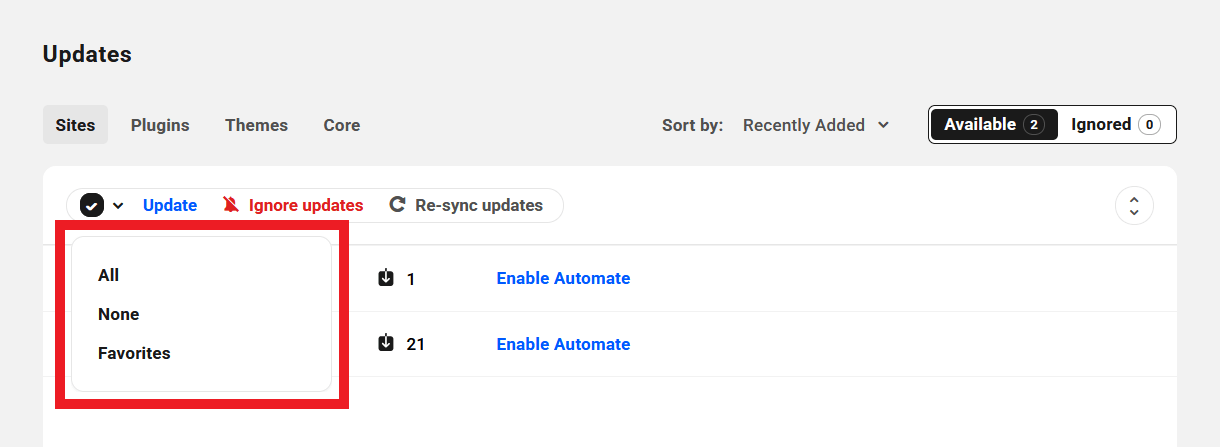
You can use the Sort By filter at top-right just like on your My Sites screen to show the list of sites Alphabetically in ascending or descending order, by Recently Added or by Updates available.
Note that the link to Enable Automate will appear for any site listed that does not yet have Automate enabled on it. Click that link to be redirected to the Automate screen for that site to enable that feature if you wish. See the Automate & Updates doc for more info on that.
Click the Re-sync link to see the latest updates for a specific site. You can also re-sync the updates for all sites using the Re-sync updates link.
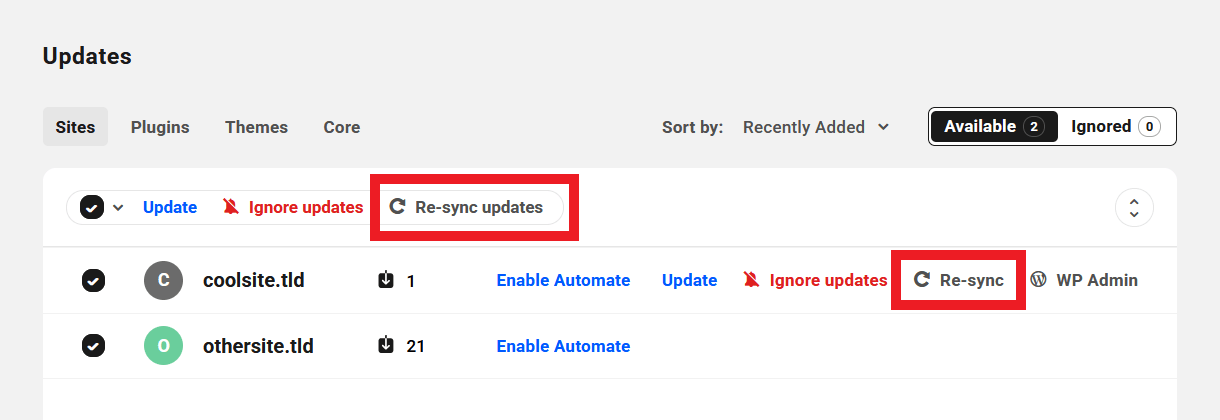
You can also click the WP Admin link to be taken to the wp-admin URL of that site in a new tab.
Hover your mouse over the number next to any site to see which plugins/themes need updating on that site. Click the checkboxes in the list to select/deselect any you want to include/exclude.

If you want to see all available updates for all sites, click the up/down arrow icon at the top to expand all sites. Here again, you can click the checkboxes to select/deselect any plugins/themes you want to include/exclude in your updates.

3.3 Plugins
Copy chapter anchor to clipboardUnder the Plugins tab, the functionality is much the same as above. But here, instead of listing the sites that have updates available, the list shows the plugins with available updates.
Hover your mouse over the number next to any plugin to see which sites have this update available.
Check or uncheck any sites or plugins you want to include or exclude. Use the Sort By feature at top-right to sort the list of available updates Alphanumerically or by number of sites that have Updates available.

3.4 Themes
Copy chapter anchor to clipboardUnder the Themes tab, the functionality is again much the same as above. But here the list shows the themes with available updates.
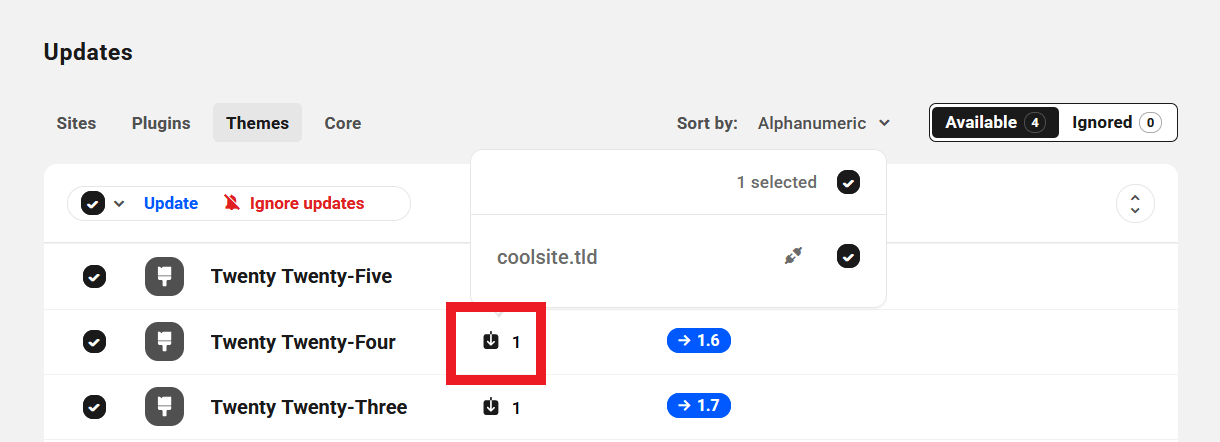
Hover your mouse over the number next to any theme to see which sites have this update available.
Check or uncheck any sites or themes you want to include or exclude. Use the Sort By feature at top-right to sort the list of available updates Alphanumerically or by number of sites that have Updates available.
3.5 Core
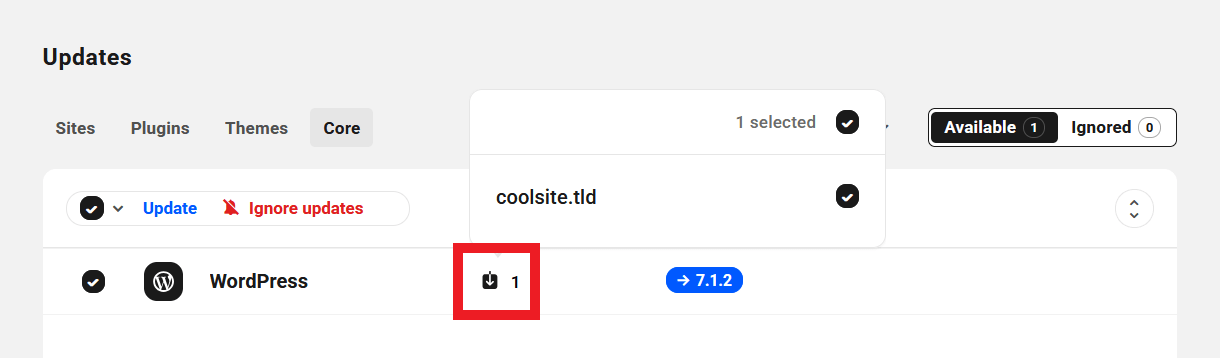
Copy chapter anchor to clipboardThe functionality under the Core tab is much the same as above. But here, you’ll see a list of any sites that have outdated versions of WordPress running. Check or uncheck any site to include or exclude as needed.
3.6 Ignore updates
Copy chapter anchor to clipboardYou can also choose to ignore any selected updates by clicking Ignore updates.
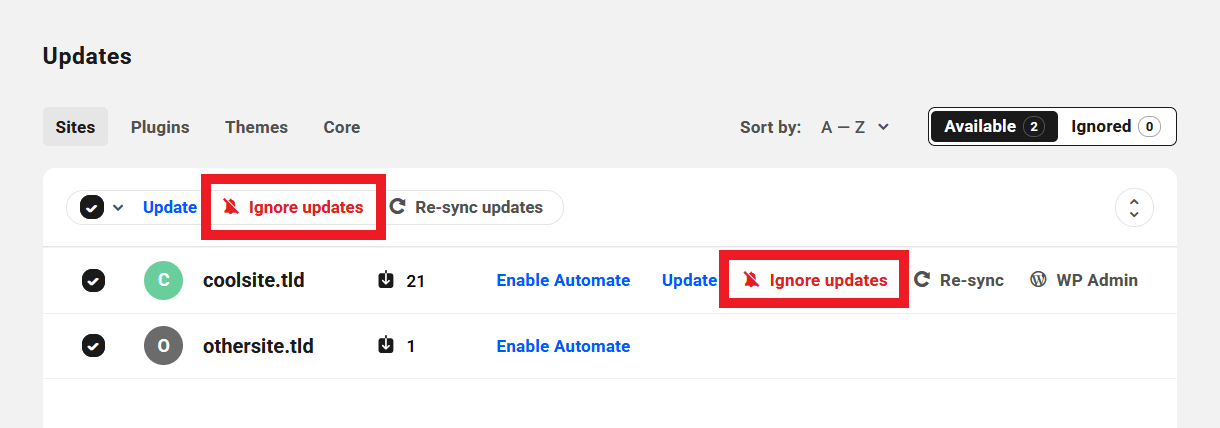
This will stop any current and future updates from running until they are unignored, which can be done at any point by selecting the desired update under the Ignored tab and clicking Unignore updates. The Ignore feature also applies to Automate updates.
Navigate between unignored and ignored updates with the Available and Ignored tabs at the top of the module.

Note that ignoring updates in your Hub only affects updates from the Hub; it does not block any automated updates in your site’s wp-admin if you have that enabled.
Check out our blog on Ignoring Updates For WordPress Core, Plugins, and Themes for more information on why you might want to ignore updates on your site.
3.7 Get Support
Copy chapter anchor to clipboardIf you still have questions or need assistance after reading this document, please don’t hesitate to contact our support superheroes using the available options under the Support tab in your Hub or via the Support tab in your WPMU DEV Dashboard.