6. Site Templates

The Site Templates area in your Hub is where you can create and manage your own custom site templates, as well as preview the preconfigured templates from WPMU DEV.
Any site template can be used when creating a new site on our dedicated hosting service.
However, please note that Site Templates are not available for selection when creating a site on an unlimited hosting server. A future update to that service may remove this limitation.
6.1 Getting Started
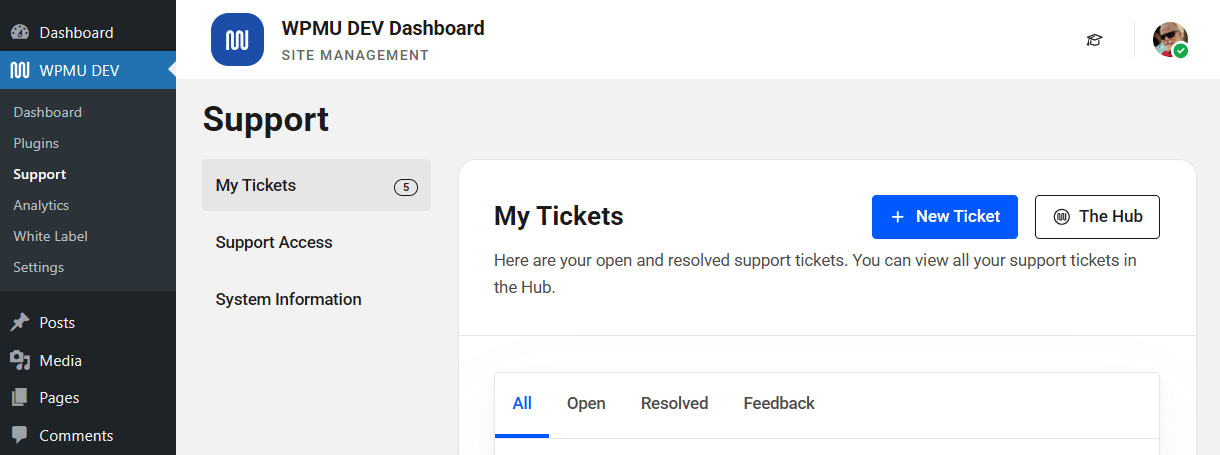
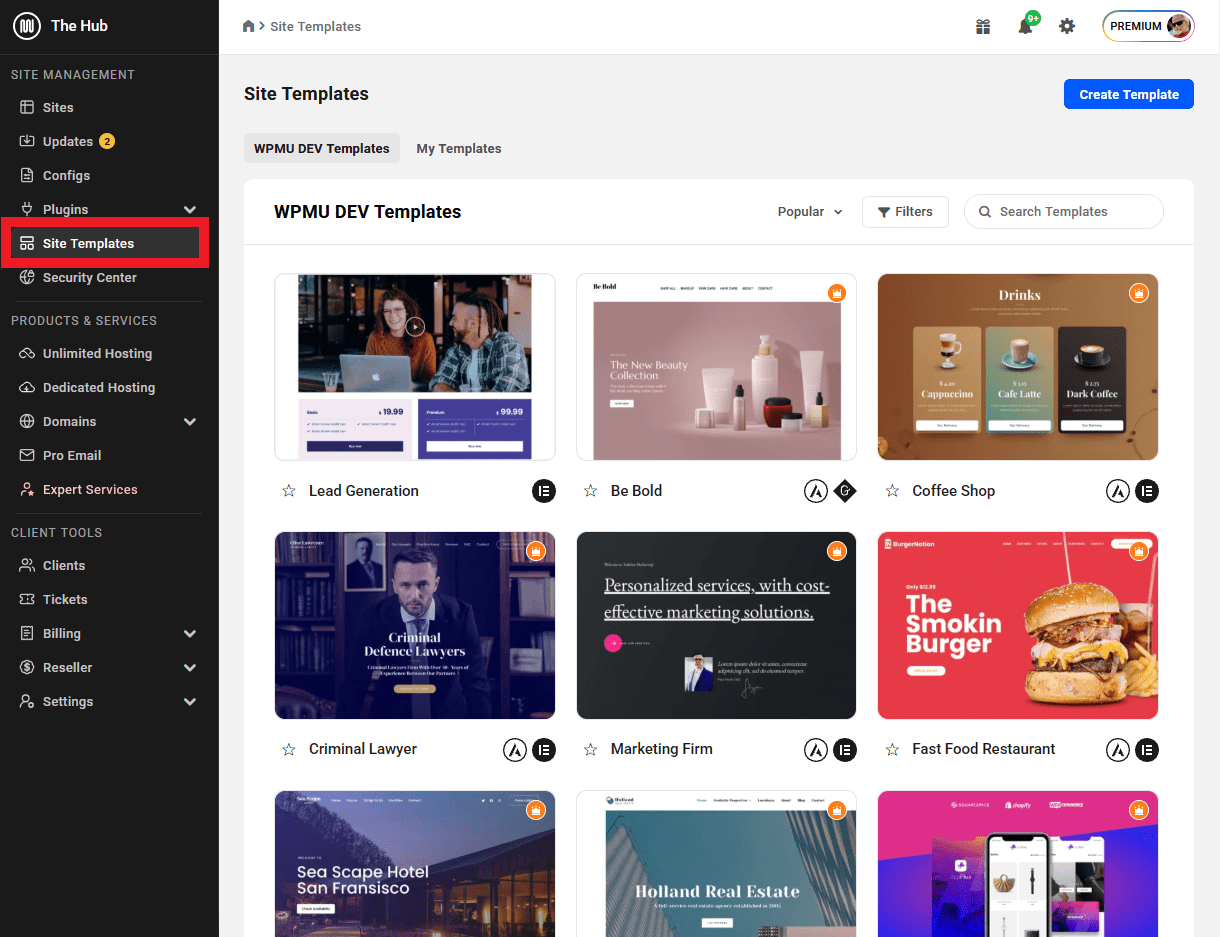
Copy chapter anchor to clipboardAccess the Site Templates section by clicking Site Templates in the Hub main menu on the left.
You’ll find the preconfigured WPMU DEV Templates under their own tab, and any custom templates you create will be located under the My Templates tab.
6.2 WPMU DEV Templates
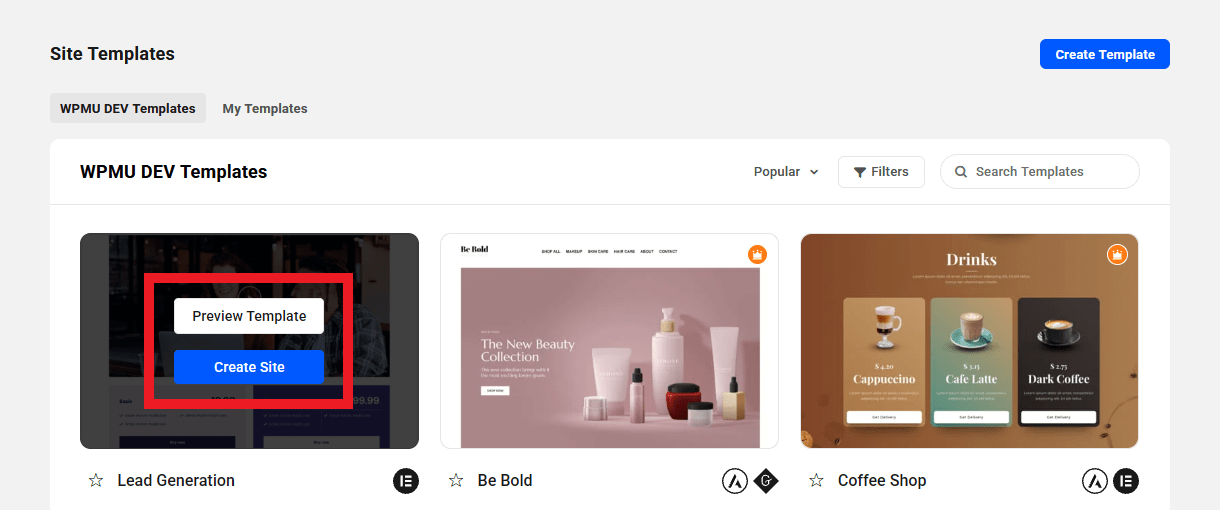
Copy chapter anchor to clipboardYou can pop open a preview of any WPMU DEV site template in a new tab by hovering over the template and clicking on the Preview Template button. Or visit our Site Templates page if you’re not already logged into your Hub.
You can also create a new WPMU DEV hosted site directly from this screen by hovering over the template you wish to use and clicking the Create Site button
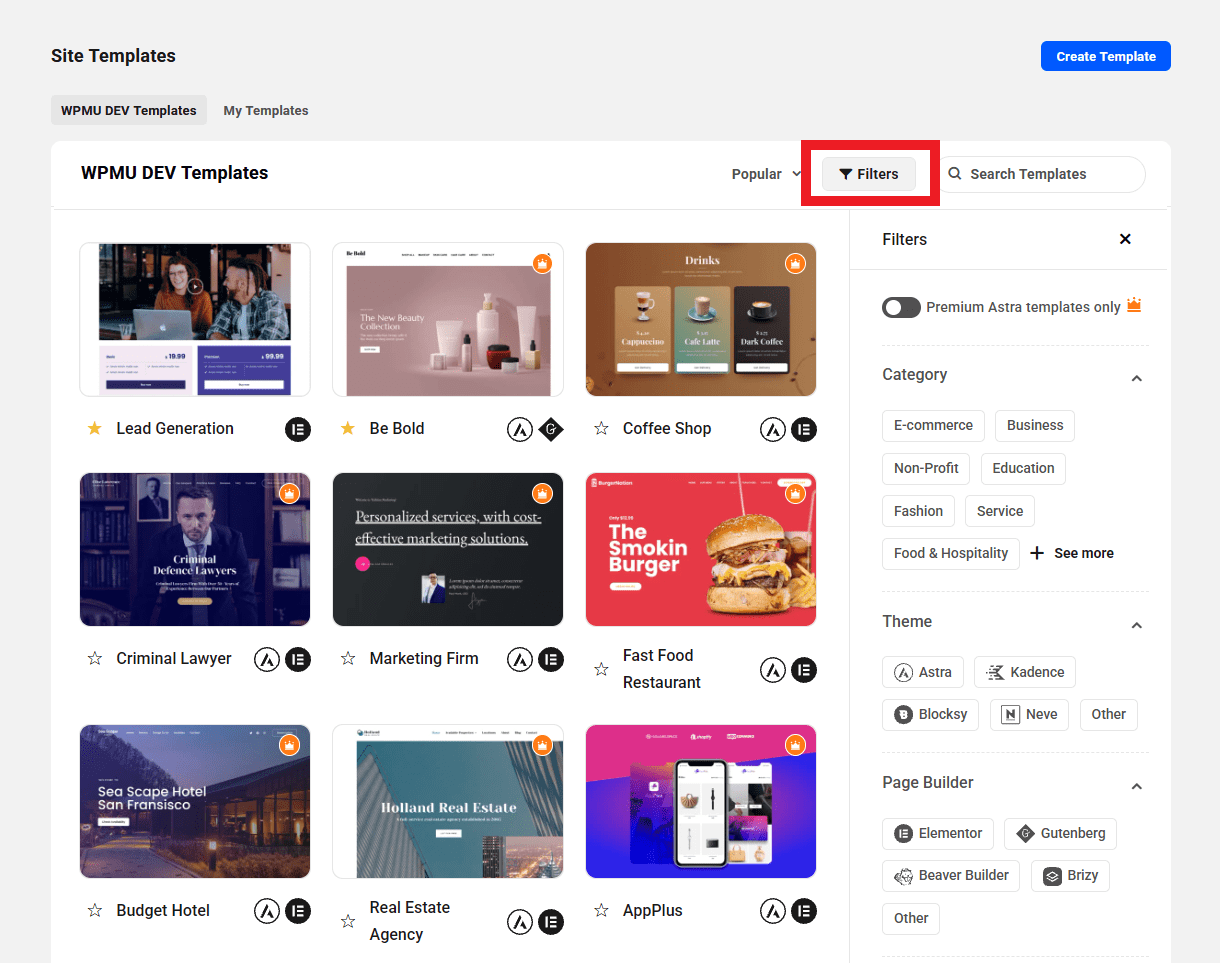
You can search for a specific WPMU DEV template using the Search field, or Sort them by most Popular or ascending/descending alphabetical order.

Toggling on the Pin favorites to top option will display all templates that you have favorited by clicking the star icon next to the template name.

You can also Filter templates by Category, Theme or Page Builder. In addition, WPMU DEV has partnered with Astra Themes to offer you several dozen of their premium starter themes – for free. Toggle on the Premium Astra templates only option to only show those templates.
6.3 Custom Templates
Copy chapter anchor to clipboardIf you have not yet created any custom site templates, the My Templates screen will prompt you to create one.
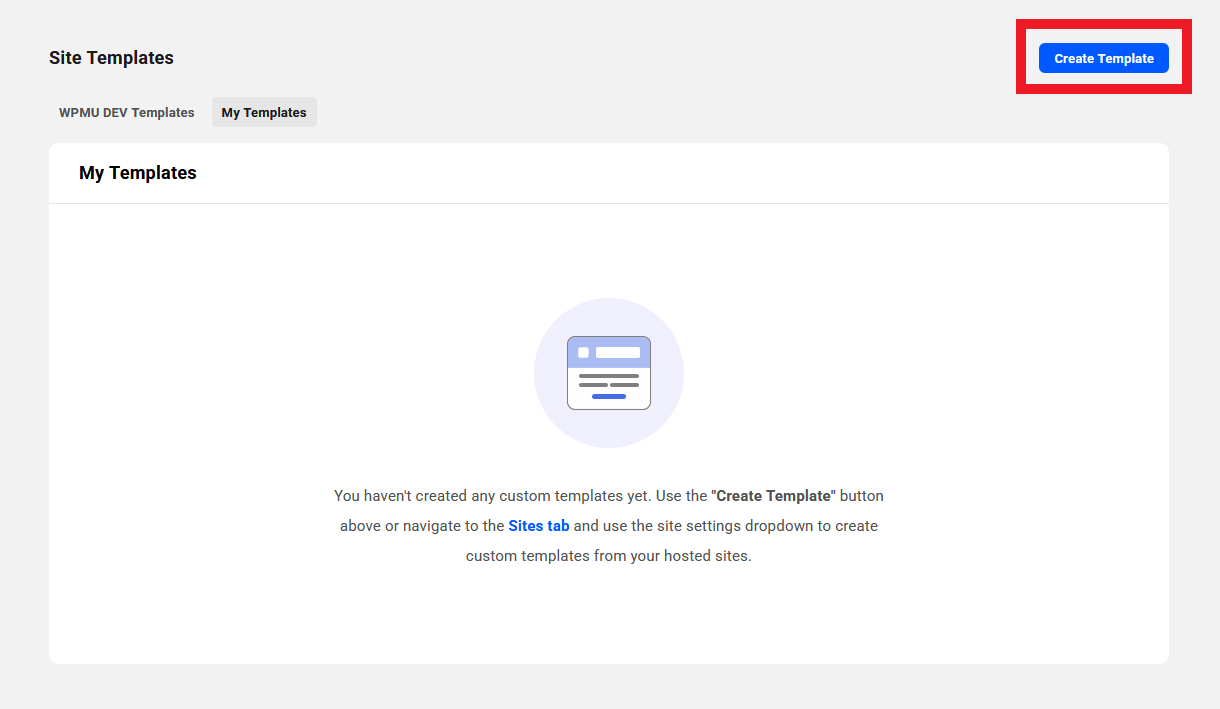
Please note that the Custom Templates feature is not available to Free Hub users, unless you have also created a site on a standalone hosting plan. See Free Hub Restrictions for details.
Click the Create Template button at the top-right of that screen to pop open a modal window where you’ll be prompted to select the dedicated hosting Site you want to use as a template (this feature is not available for sites on unlimited hosting servers). Then enter a template Title and optional Description.
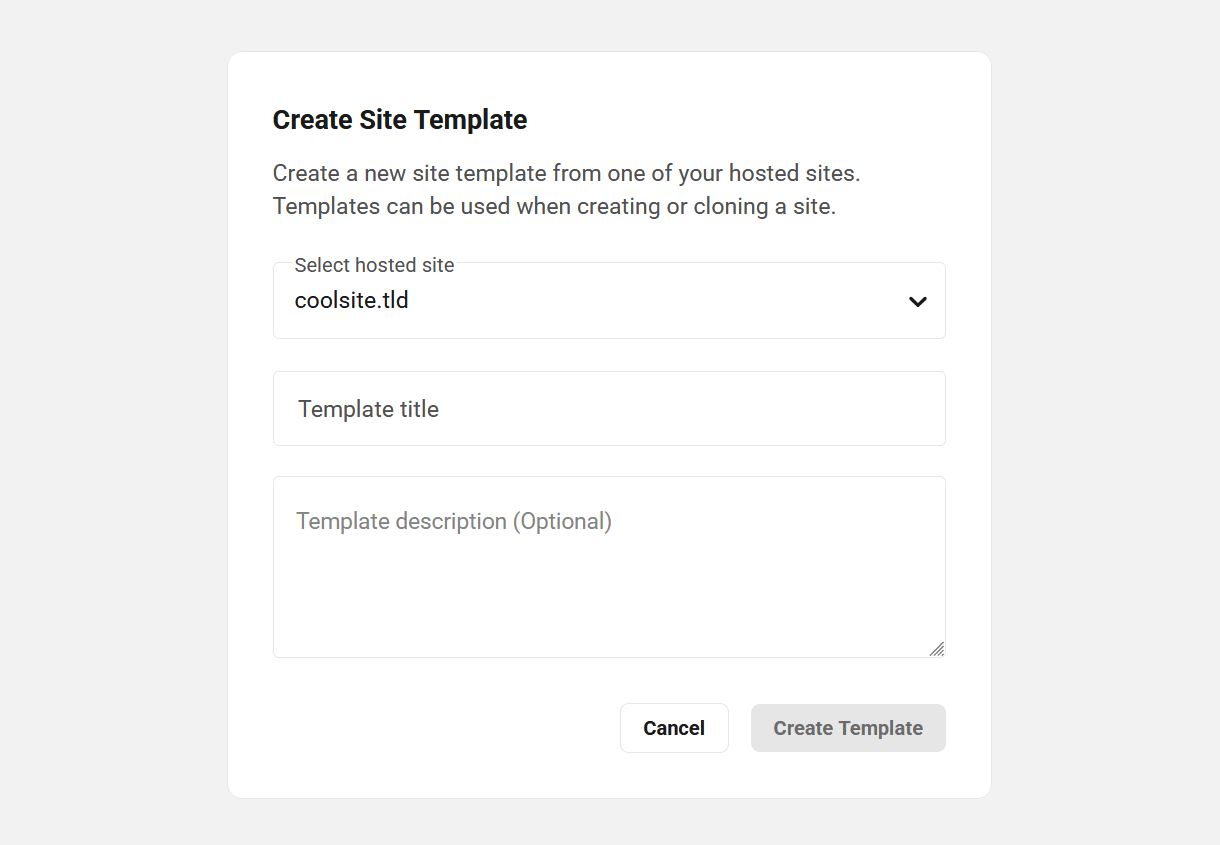
Click the Create Template button to start the process. A progress indicator will appear so you can estimate how long it will take.

The actual time needed to create the template will depend entirely on the size of the site used for it. You’ll receive an email as soon as your template is created.
Note that you can also create a template by clicking the Create Template option under the kebab icon for any WPMU DEV hosted site on the My Sites screen of your Hub.

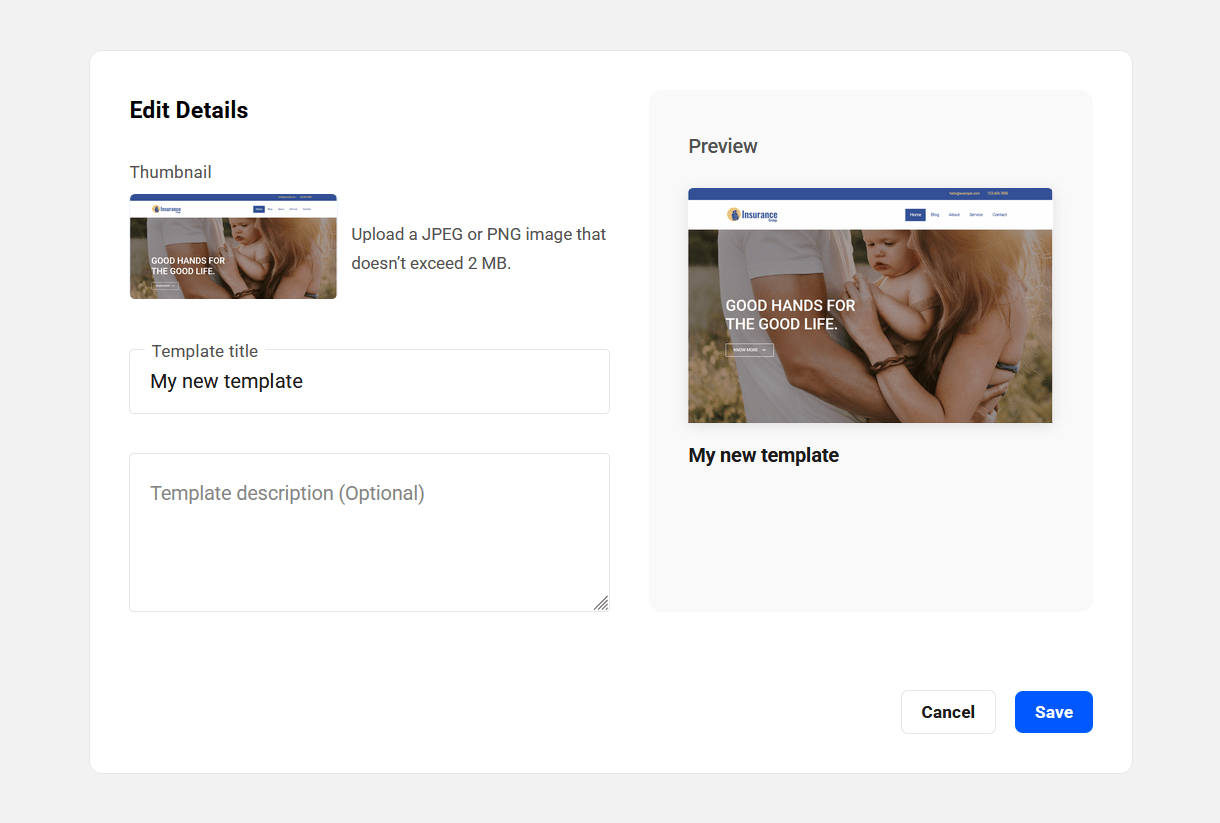
Click the kebab icon to reveal options to Edit the Title and optional Description as well as add a custom Thumbnail image, or Delete the template.
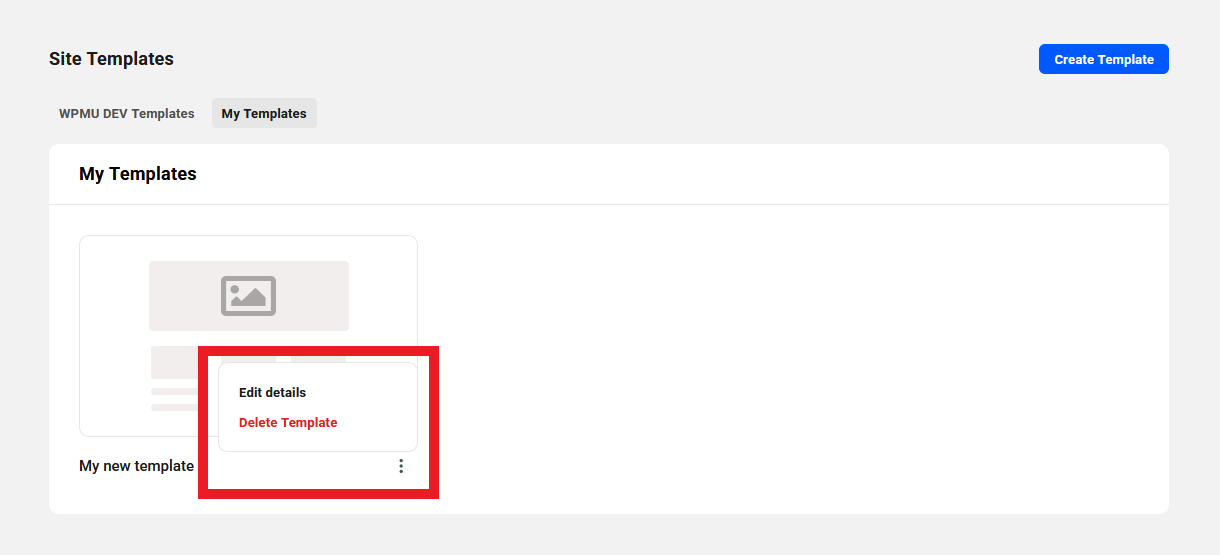
To add a custom thumbnail image, first click Edit details and then click Add Thumbnail in the Edit Details modal window.
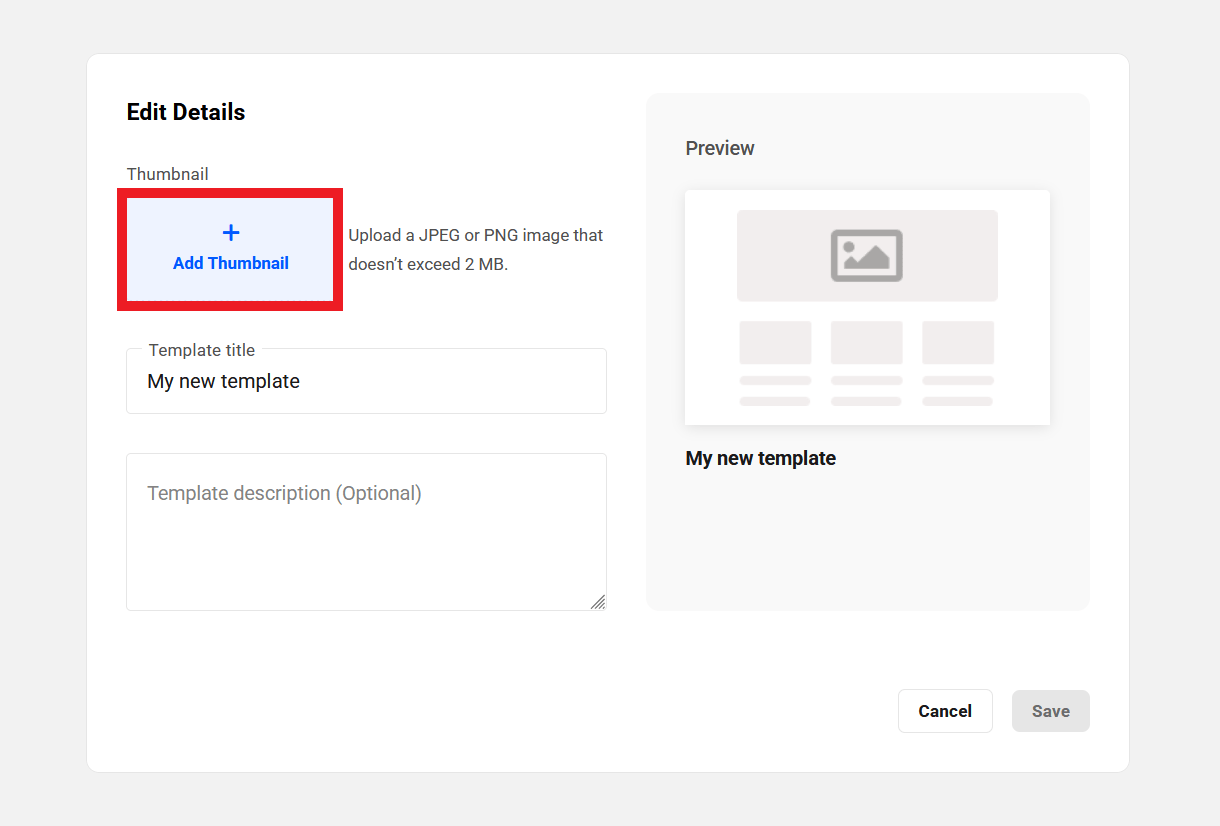
Navigate to and select a JPEG or PNG image to use as a custom thumbnail image. The image should be no more than 2MB in size. You should then see the selected image in the Template Preview. Click Save to save your changes.
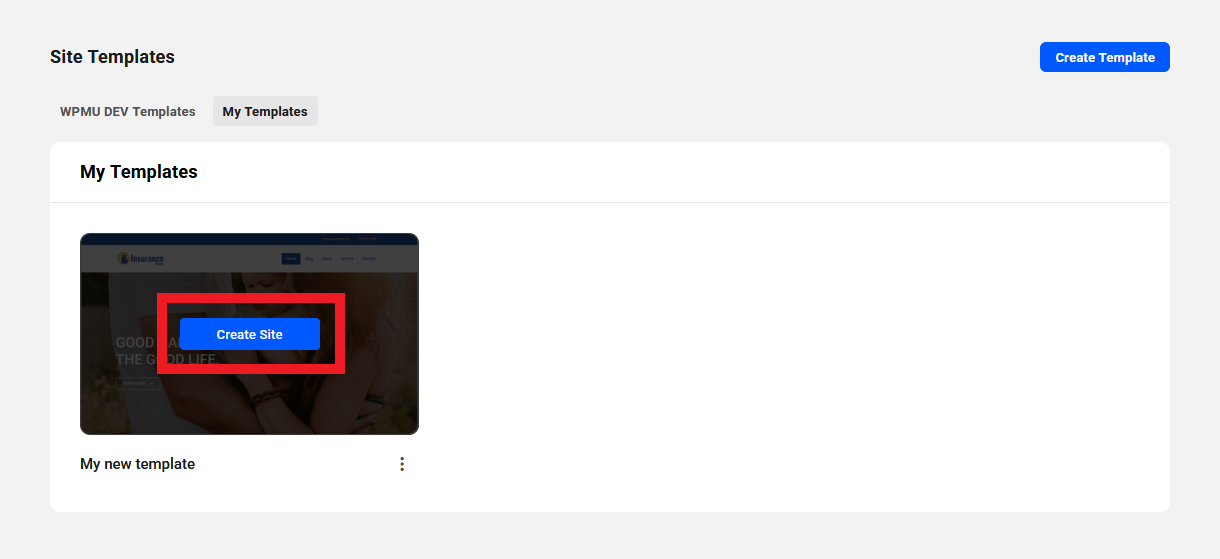
Just like with our preconfigured templates, you can also create a new WPMU DEV hosted site directly from this screen by hovering over the custom template you wish to use and clicking the Create Site button
See Full Site Editing blog post to learn more about how FSE works and WPMU DEV hosted FSE templates.
Check out our Create and Sell Your Own Site Templates For Free With WPMU DEV Hosting post in the blog to see how they can help get you one step closer to a fully automated WordPress SaaS business.
6.4 Site Templates FAQs
Copy chapter anchor to clipboardWill custom templates cost me anything?
Nope. Each custom template that you create is actually a full backup of the selected site which we store on our servers. It does not affect your hosting storage at all. When you choose to use a custom template to create a new site, that backup is fetched and restored at your chosen new site URL.
Is there a limit to how many custom templates I can create?
Yes. You can have up to a total of 25 custom templates in your account. Note that you can only create one custom template at a time though; the create template buttons will be disabled while a template creation is in progress.
Can I create a custom template from a 3rd-party site connected to my Hub?
No. It is only possible to create custom templates from sites hosted by WPMU DEV.
If I create a custom template and then delete the site from which it was created, does the template get deleted as well?
No. Your custom template would not be affected if you delete the site it was made from.
Can I make multiple custom templates from the same site?
Yes. You can save a first custom template. Then make changes to the site and save a second template. Make more changes and save a third template, and so on.
Can I edit or update the content of existing custom templates?
No. As custom templates are actually full site backups, it is not possible to edit or update anything in them once they’re created. If you do need to edit or update your template, you’d need to create a new one from your updated source site, then delete the outdated template.
Why don’t I see a screenshot or preview button in My Templates?
Since custom templates are backups, they cant be previewed live. However, you can choose to upload custom thumbnails for your templates. To do this, click Edit details in the template options, and then click Add Thumbnail.
Is there any limit to the size of my custom templates?
No, your templates can be made from sites of any size. However, if you try to create a site on a hosting plan whose available storage space is less than the size of your template, the site creation will fail. For example, if you have a template made from a large site on a Gold plan and try to use that for a new site on the Quantum plan, it would most likely fail as only 4 of the 10Gb of storage is available to use on the Quantum plan. See About System Storage for more.
Are all the users, license keys, settings, site data, etc. preserved in templates?
Yes. Creating a site with a WPMU DEV or custom template creates an exact duplicate of the site the template is made from.
Note that if there are any premium theme or plugin licenses on a site you use for a custom template that you do not want enabled on sites created from that template, you would want to remove those before making a template from the site.
There are also a few differences in how users are handled for the two template types as seen below.
WPMU DEV Templates
When a site is created using a WPMU DEV template:
- The existing wp-admin user is deleted and a new admin user is created using your email address and a random password.
- SSO login is enabled for this new admin user and access to the WPMU DEV Dashboard is limited to this admin user only (you can add other admin users later if you need to under the Permissions tab in the Dashboard settings).
- If the site is created by a client when purchasing a Hosting Reseller product from you, another user is created for the client based on the credentials they provide when creating the site, with the WordPress user role you set for that Reseller product.
Custom Templates
When a site is created using a custom template:
- Existing users are preserved with the assumption that you would have an admin user in the template already, with SSO login enabled for that user and access to the WPMU DEV Dashboard plugin already restricted to that user. This is recommended so you can provide support on your client sites.
- If the site is created by a client when purchasing a Hosting Reseller product from you, another user is created for the client based on the credentials they provide when creating the site, with the WordPress user role you set for that Reseller product.
6.5 Get Support
Copy chapter anchor to clipboardIf you still have questions or need assistance after reading this document, please don’t hesitate to contact our support superheroes using the available options under the Support tab in your Hub or via the Support tab in your WPMU DEV Dashboard.