1. Hub Overview

This document is a quick overview of the features available in your Hub for managing multiple websites from one place.
If you haven’t set up your WPMU DEV account yet, visit The Hub page, where you can explore the features and see pricing packages.
Already a member? Visit your Hub dashboard to get started.
If you don’t yet have any sites in The Hub, see Adding a site to The Hub in our Sites document to learn how to connect or create sites.
1.1 Getting Started
Copy chapter anchor to clipboardThe main menu on the left allows you to navigate between the different sections in your Hub. Click any linked item in the list below to be redirected to the respective documentation for more information on each section.

- Sites – Connect, create, view and manage unlimited sites in your Hub.
- Updates – Manually manage all available updates (plugins, themes and core WordPress) for all your sites. Also see our Automate & Updates documentation for details on keeping individual sites updated automatically
- Configs – Manage preset configurations of your WPMU DEV plugins and services and apply them to any sites.
- Plugins – Install and manage any plugins on any or all of your sites.
- Site Templates – Create new sites from preconfigured WPMU DEV site templates or your own custom ones.
- Security Center – Activate and manage robust IP protection for any or all of your sites and unlimited hosting servers.
- Unlimited Hosting – Create your own unlimited hosting servers with as many live and staging sites as you want on each one.
- Dedicated Hosting – Everything you need to create or migrate sites on our dedicated hosting platform.
- Domains – Purchase, transfer & connect domains and manage DNS for all of them right in your Hub.
- Pro Email – Create professional, branded email accounts for you and your clients.
- Expert Services -Take advantage of the services offered by our skilled team of in-house developers.
- Client Tools – Everything you need to effectively manage client activity in your Hub or your branded client portal.
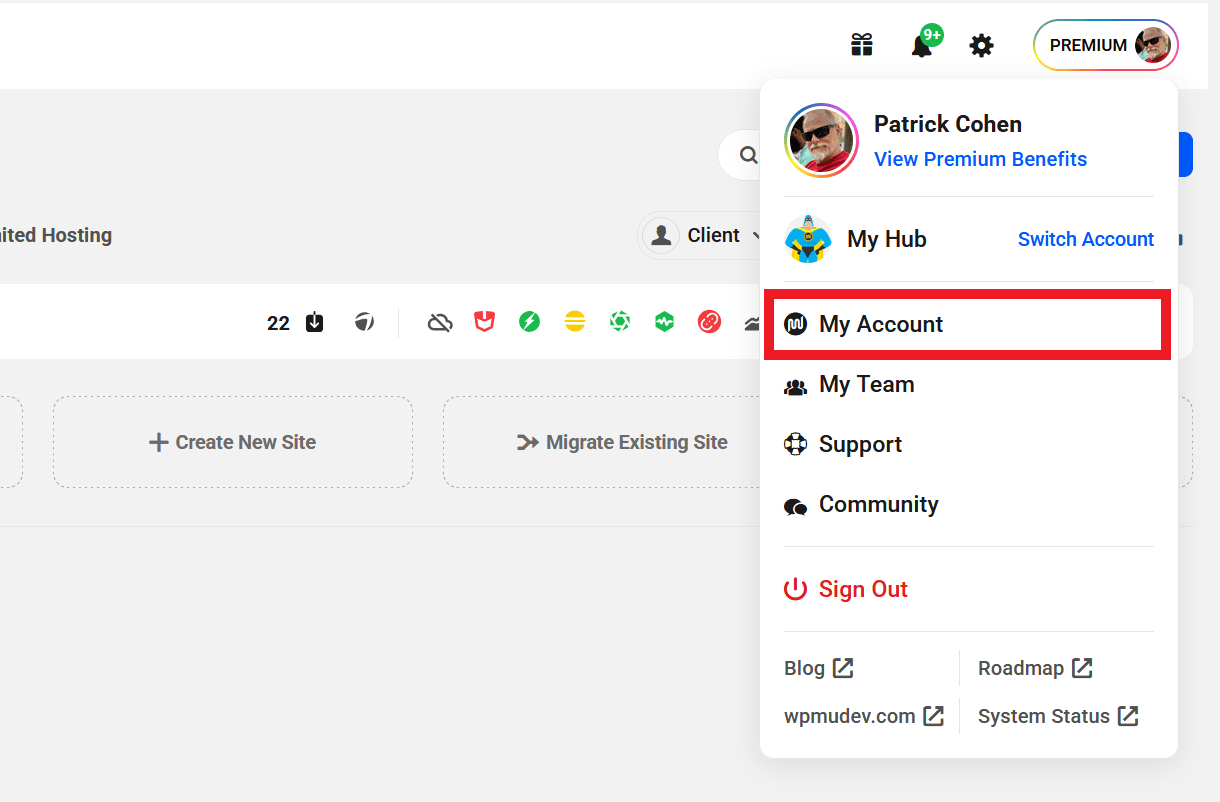
The secondary menu at top-right enables you to access several WPMU DEV resources, check out what’s new, view notifications, and manage your account.
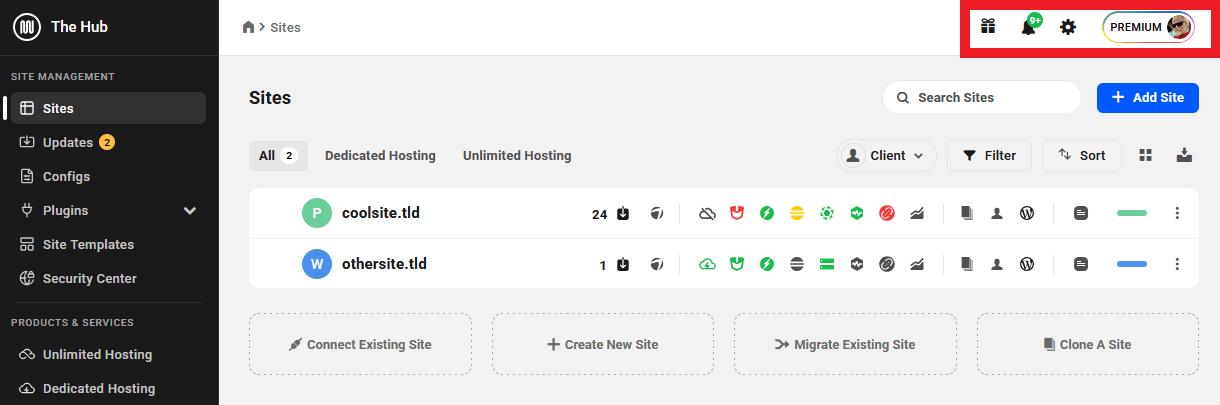
To keep up with the latest news from WPMU DEV, click on the gift icon. Configure your Hub settings by clicking on the gear icon. That will trigger a dropdown menu with options to edit your Hub Preferences.
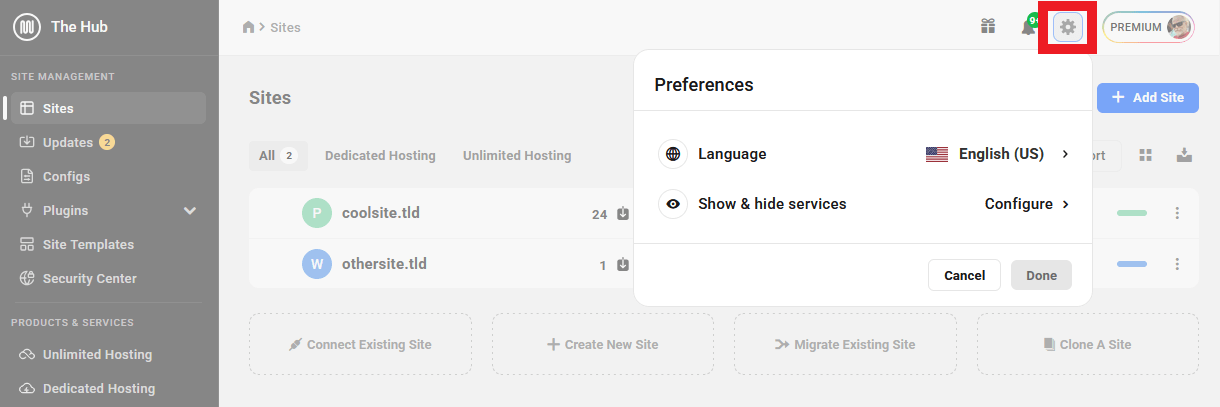
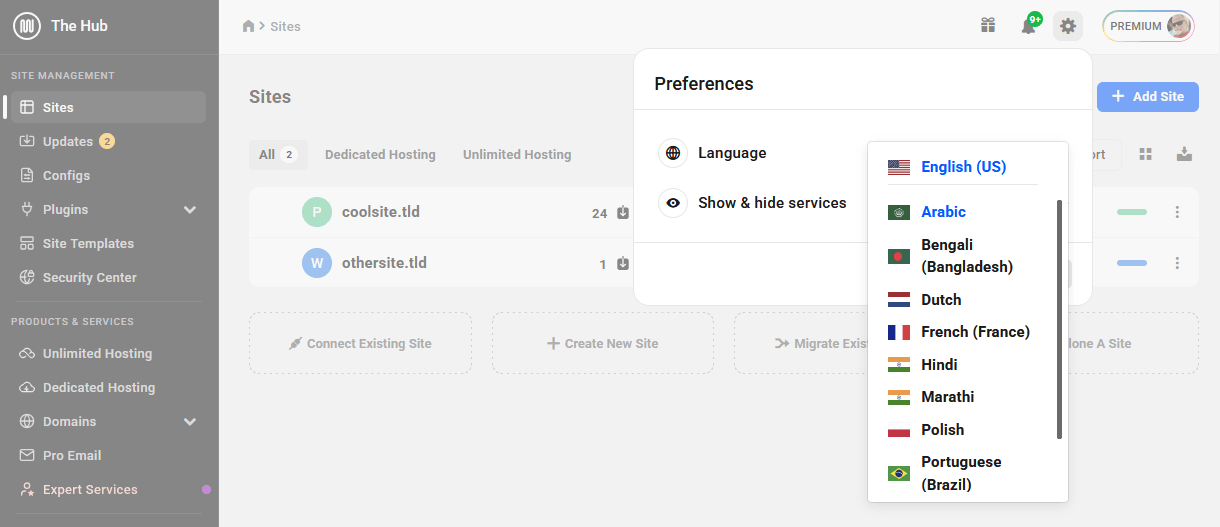
Click on your current language to access a list of available languages for the Hub. Select your new language and click Save.
Click Configure to open the Show & Hide Services window, which allows you to customize your Hub interface. Toggle individual features on or off to show or hide them in the Hub.

For example, if you hide the Hosting service, then the Hosting module will be removed from the main menu bar and all links and prompts to migrate to WPMU DEV hosting will be hidden.
These settings only affect your view of The Hub, and do not affect team members or clients that you invite to join your Hub. For information on controlling team member and client access to the Hub, see our Team & Client Role Customization documentation.
To manage your account settings, click on your account profile avatar.
1.2 Get Support
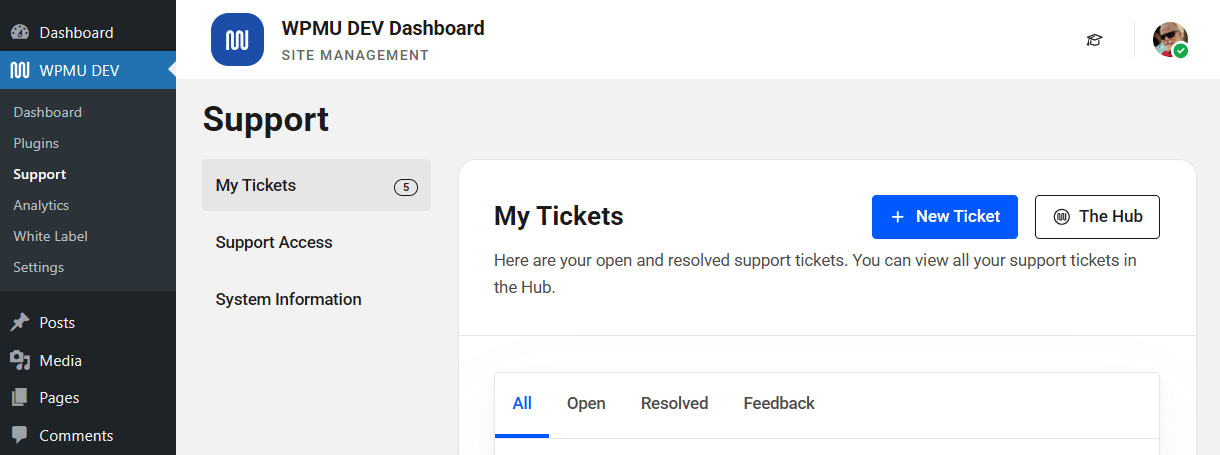
Copy chapter anchor to clipboardIf you still have questions or need assistance after reading this document, please don’t hesitate to contact our support superheroes using the available options under the Support tab in your Hub or via the Support tab in your WPMU DEV Dashboard.