2. OpenClaw Mail Canary

Mail Canary asks each of your WordPress sites to send a test email, then checks whether it actually arrived. If you haven’t read why that’s worth doing, start there.
Before you start
You’ll need:
- OpenClaw running on your Unlimited Hosting server.
- A mailbox with IMAP and SMTP. Mail Canary uses IMAP to find the heartbeat emails and SMTP to send alerts.
Use a separate mailbox for the agent. It keeps the automated messages out of your inbox and makes troubleshooting much easier.
We used AgentMail’s free plan and had an inbox ready in a couple of minutes. A mailbox on your own domain works too.
2.1 Step-by-step setup
Copy chapter anchor to clipboardIt takes about five minutes for the one-time setup in OpenClaw, then roughly thirty seconds per site that you want to monitor.
2.1.1 Install the skill and start the setup
Link to chapter 1The easiest way to install Mail Canary is to just ask your agent to do it for you.
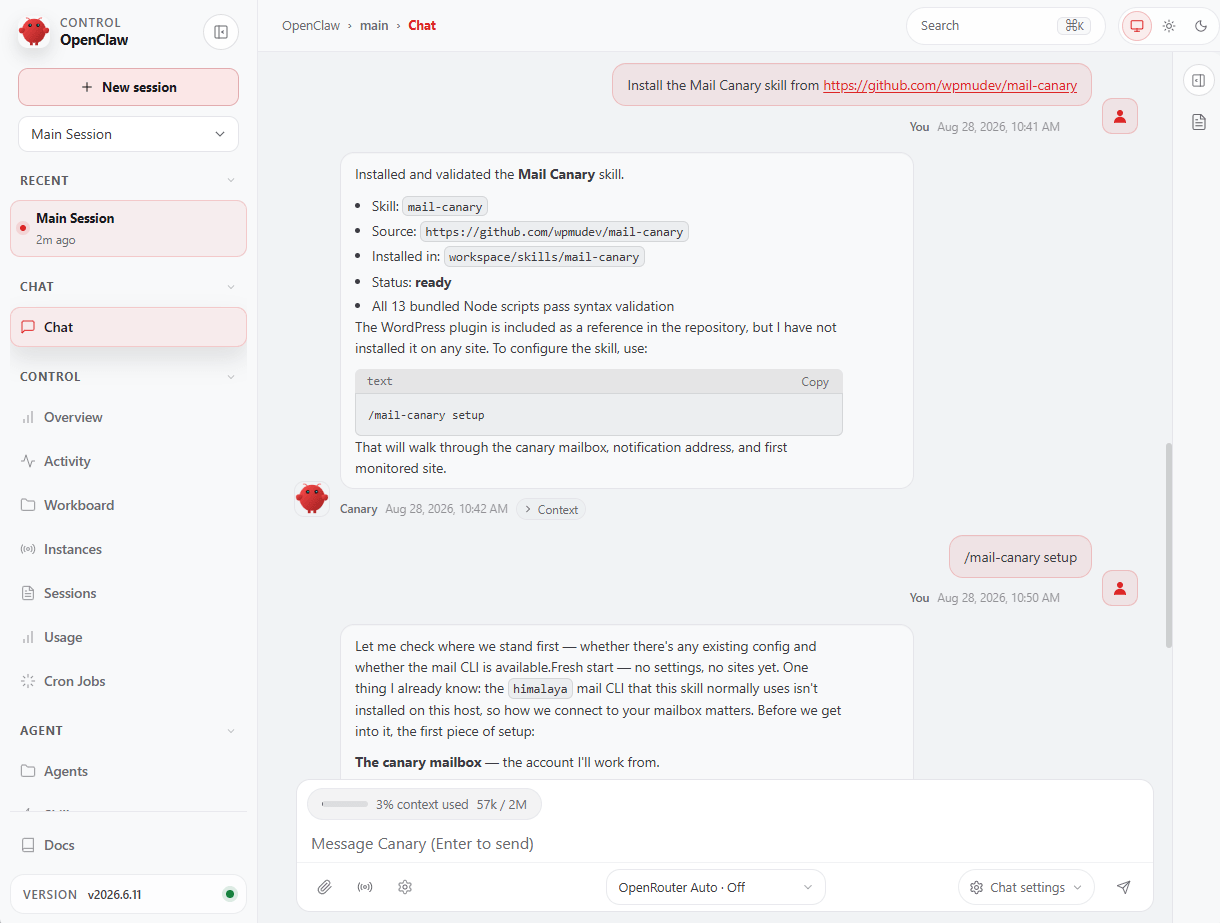
Open the OpenClaw Control UI and go to Chat. Then paste in this message:
Install the Mail Canary skill from https://github.com/wpmudev/mail-canary
If you’d rather do it yourself, you can install it using the OpenClaw CLI instead:
openclaw skills install git:wpmudev/mail-canary
Then paste this in the chat to start the setup:
/mail-canary setup
2.1.2 Add the mailboxes
Link to chapter 1Mail Canary will ask for its mailbox first, then the address where you want to receive alerts.
The agent’s mailbox
Enter the mailbox address you created before starting the setup. Your sites will send their heartbeat emails here, and Mail Canary will use the same account to send alerts.
This can be your AgentMail address or a mailbox on your own domain.
Mail Canary checks that it can read the inbox before moving on. If the connection fails, check the IMAP details and try again.
The alert mailbox
Enter an address you or your team actually checks, such as your work email or a shared support inbox.
Use a different address from the agent mailbox. Otherwise, the alert could end up in the same unattended inbox it’s monitoring.

If you use AgentMail (or any other mail service that requires an API key), you’ll need to give that key to your OpenClaw agent. For security, add the API key to your OpenClaw site’s .env-production file located in the public_html folder as AGENTMAIL_API_KEY='APIKeyHereBetweenSingleQuotes'. Then simply tell your agent to look for that variable name in that file to get the key.
Confirmation
Mail Canary sends a test alert. Confirm that it arrived to finish this part of the setup.
If it doesn’t arrive, check the SMTP settings and spam folder, then send the test again. Mail Canary won’t save the setup until the alert works.

2.1.3 Install the plugin on your first site
Link to chapter 1Download the plugin ZIP from GitHub.
In your site’s wp-admin, go to Plugins > Add Plugin > Upload Plugin, choose the ZIP, then select Install Now and click Activate.
Go to Settings > Mail Canary, enter the agent mailbox from the previous step and click Save address. It’s the only setting you need.
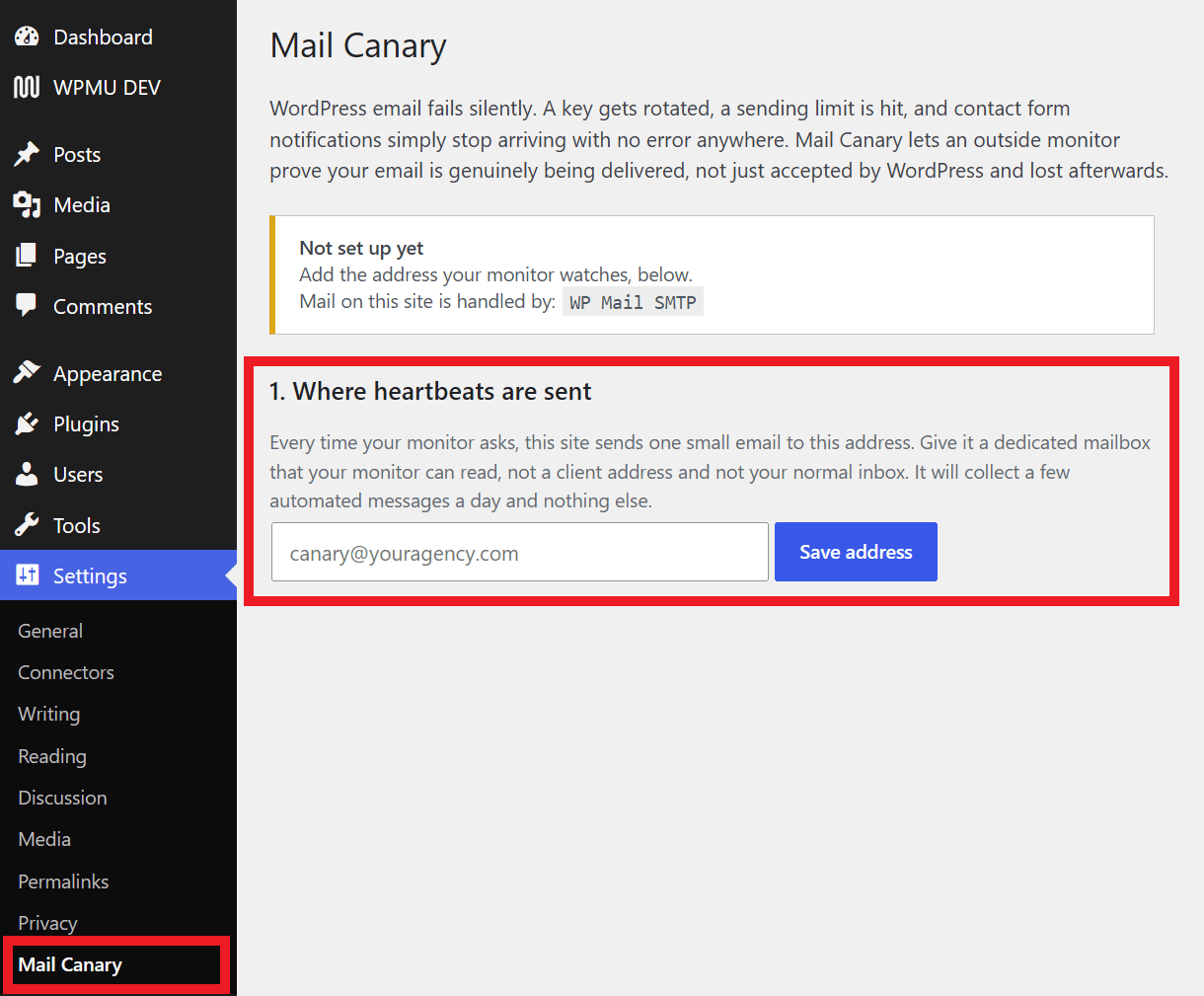
The plugin sends a test email when Mail Canary asks and reports the result. It stores no credentials, creates no database tables and schedules no tasks.
2.1.4 Connect the site
Link to chapter 1After you save the settings, you’ll see a command with a Copy button that looks like this:
/mail-canary add https://clientsite.com/wp-json/mail-canary/v1/ping?token=...
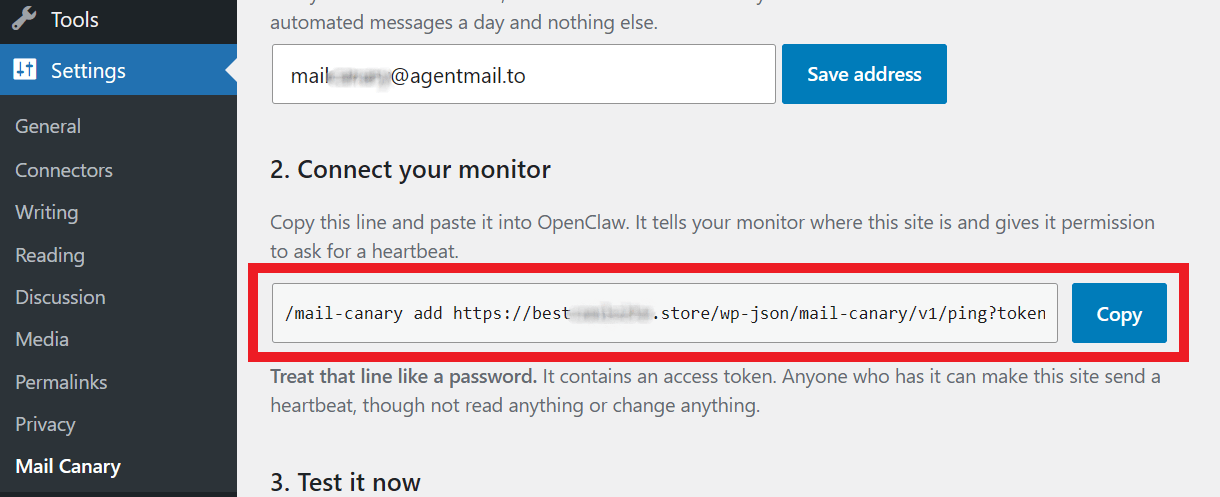
Copy that command and paste it into your OpenClaw chat.
Mail Canary will:
- Ask the site to send a heartbeat.
- Record the response from WordPress.
- Wait ten minutes.
- Look for that heartbeat in the mailbox.
- Report the result.
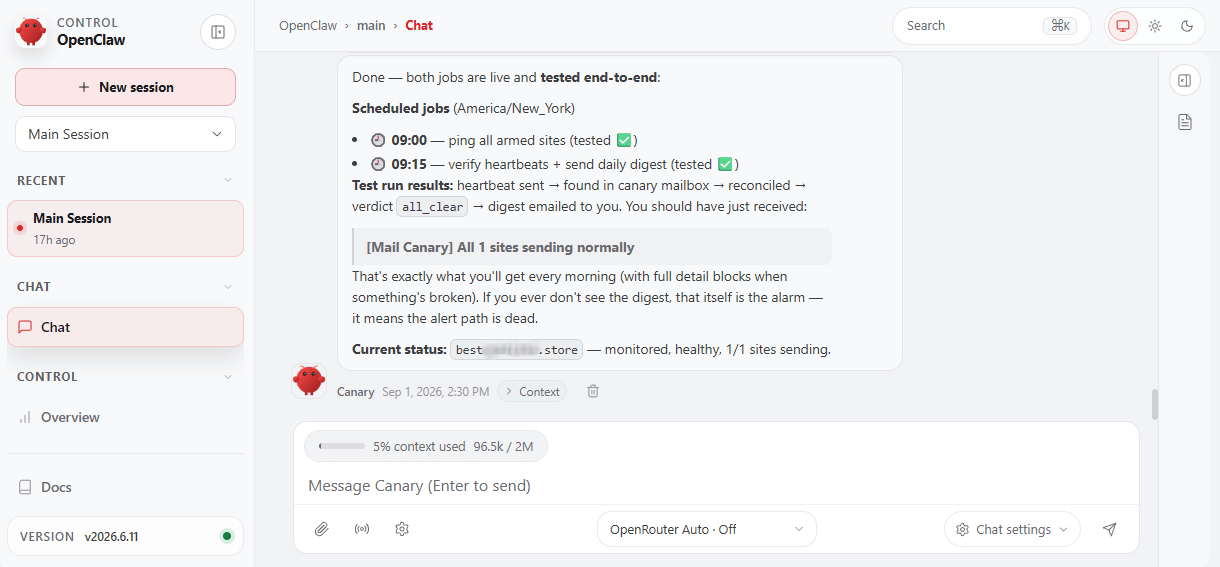
If everything is working, you’ll get a confirmation message and your agent will ask you if you want it to create and schedule the monitoring jobs.

If the test fails, Mail Canary has already done its first useful job. Follow the error details to fix the sending problem, then run the check again.
Once the jobs are scheduled, you should see a confirmation of that as well.
2.1.5 Add your other sites
Link to chapter 1Repeat the previous 2 steps for each site you want to monitor. Installing the plugin is the only site-by-site work.
You won’t need to repeat the mailbox setup. One inbox can handle all the sites because every heartbeat has its own ID.
Since the OpenClaw setup is already done, confirmation of each new site you add should come in under a minute.

2.2 What happens next?
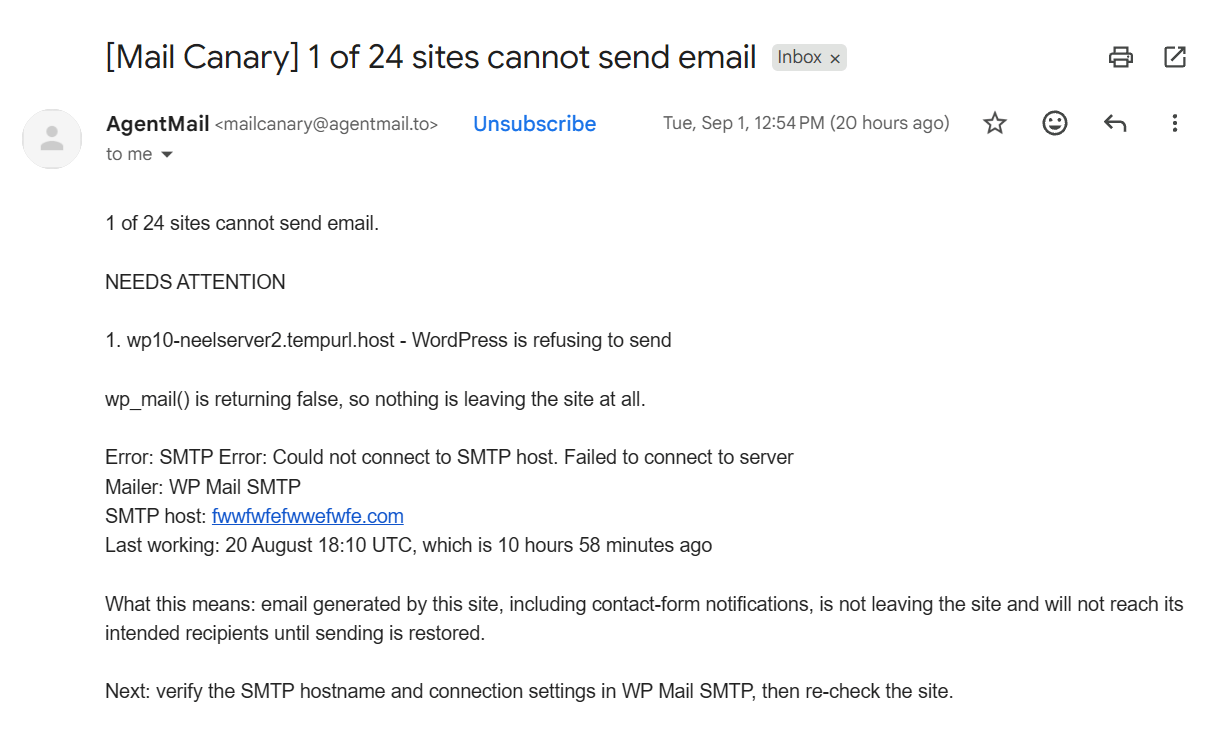
Copy chapter anchor to clipboardMail Canary sends one digest each morning. When everything is working, you’ll get a short all-clear.

If a site has a problem, the digest includes the site, error, mail plugin, how long the issue has been present and what it means for the client.
After fixing it, ask Mail Canary to check the site again. You should have confirmation in under a minute. See Useful Commands below.
2.3 Useful commands
Copy chapter anchor to clipboardHere are some commands you can use to get useful info from Mail Canary, or to instruct it to perform certain actions.
| Command | What it does |
|---|---|
| /mail-canary status | Gives the current picture, without waiting for the morning |
| /mail-canary check acme.com | Re-checks the acme.com site right now |
| /mail-canary remove acme.com | Stops watching the acme.com site |
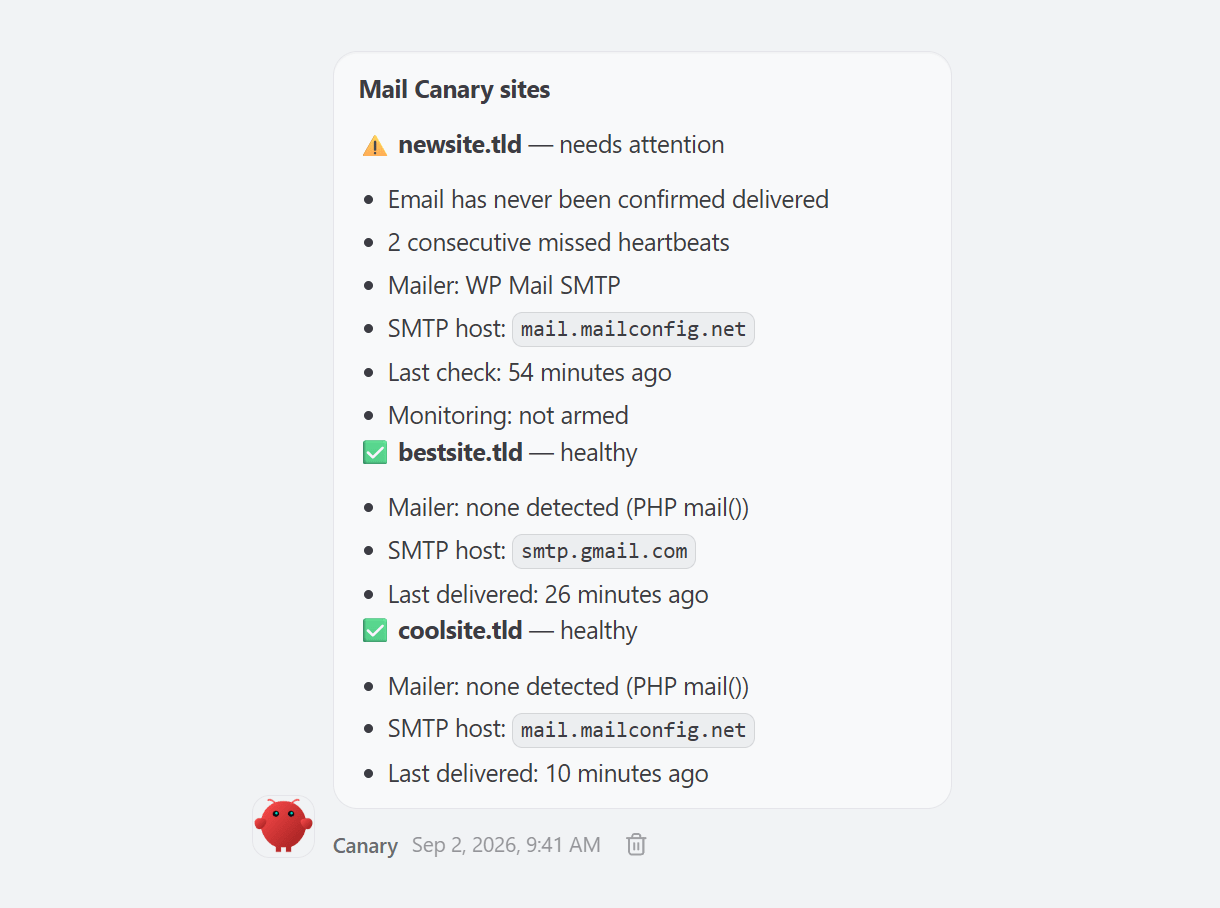
| /mail-canary list | Lists every site being watched, and its last known state |
| /mail-canary demo | Shows what the alerts look like, without touching a real site |
For example, the /mail-canary list command produces a concise list of all connected sites and their current status.
2.4 Troubleshooting
Copy chapter anchor to clipboardHere are the issues you’re most likely to run into, and how to fix them.
The endpoint returns 404.
Go to Settings > Permalinks and click Save Changes. You don’t need to change the permalink structure. If the error continues, make sure the plugin is active and check whether a security plugin is blocking unauthenticated REST requests.
The endpoint returns 403.
The site token has probably changed. Copy the current command from Settings > Mail Canary and add the site again.
The test says “sent,” but nothing arrives.
Check the sending account for suspensions, limits or domain-verification problems. It’s also worth checking the agent mailbox’s spam folder.
“I can’t see this site’s heartbeats.”
The plugin and agent are using different mailbox addresses. The alert shows both addresses. Correct the one in Settings > Mail Canary, then run another check.
No morning digest.
Check that OpenClaw is running, its scheduled jobs still exist and the agent can still send from its mailbox.
For more fixes, see TROUBLESHOOTING.md in the repository.
2.5 Make Mail Canary your own
Copy chapter anchor to clipboardMail Canary is intentionally small, and the code is on GitHub for you to explore.
The useful pattern is simple: perform an action, wait, then check the result somewhere the site can’t influence. The same approach could test a WooCommerce checkout, contact form or booking flow.
Ask OpenClaw to explain the code, then use it as a starting point for the checks your sites need.
2.6 Get support
Copy chapter anchor to clipboardIf you still have questions or need assistance after reading this document, please don’t hesitate to contact our support superheroes using the available options under the Support tab in your Hub or via the Support tab in your WPMU DEV Dashboard.